

手机用户
IOS(iPhone,iPad,iTouch):
无忧府APP->下载配置文件->OpenVPN->手工配置
安卓用户:
手工配置->openvpn->strongswan(iKev2)->sstp
How to automatically open VPN on startup (WINDOWS)
Windows Setup Instructions for 5UF VPN Auto-Launch
Follow the steps below to configure 5UF VPN to start automatically when you log into your Windows account:
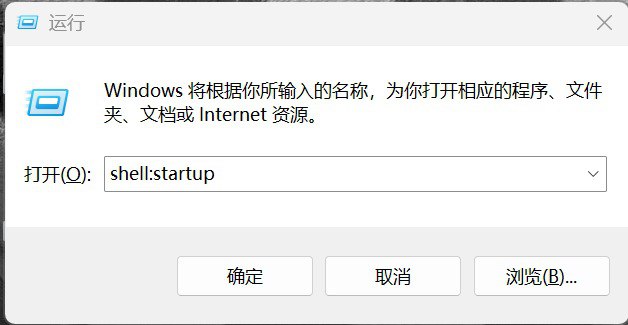
Step 1: Open the Run Dialog
Press the Windows + R keys simultaneously to open the Run dialog box.
Step 2: Access the Startup Folder
Type the following command into the Run box and press Enter:
This will open the Startup folder where programs that launch at login are stored.
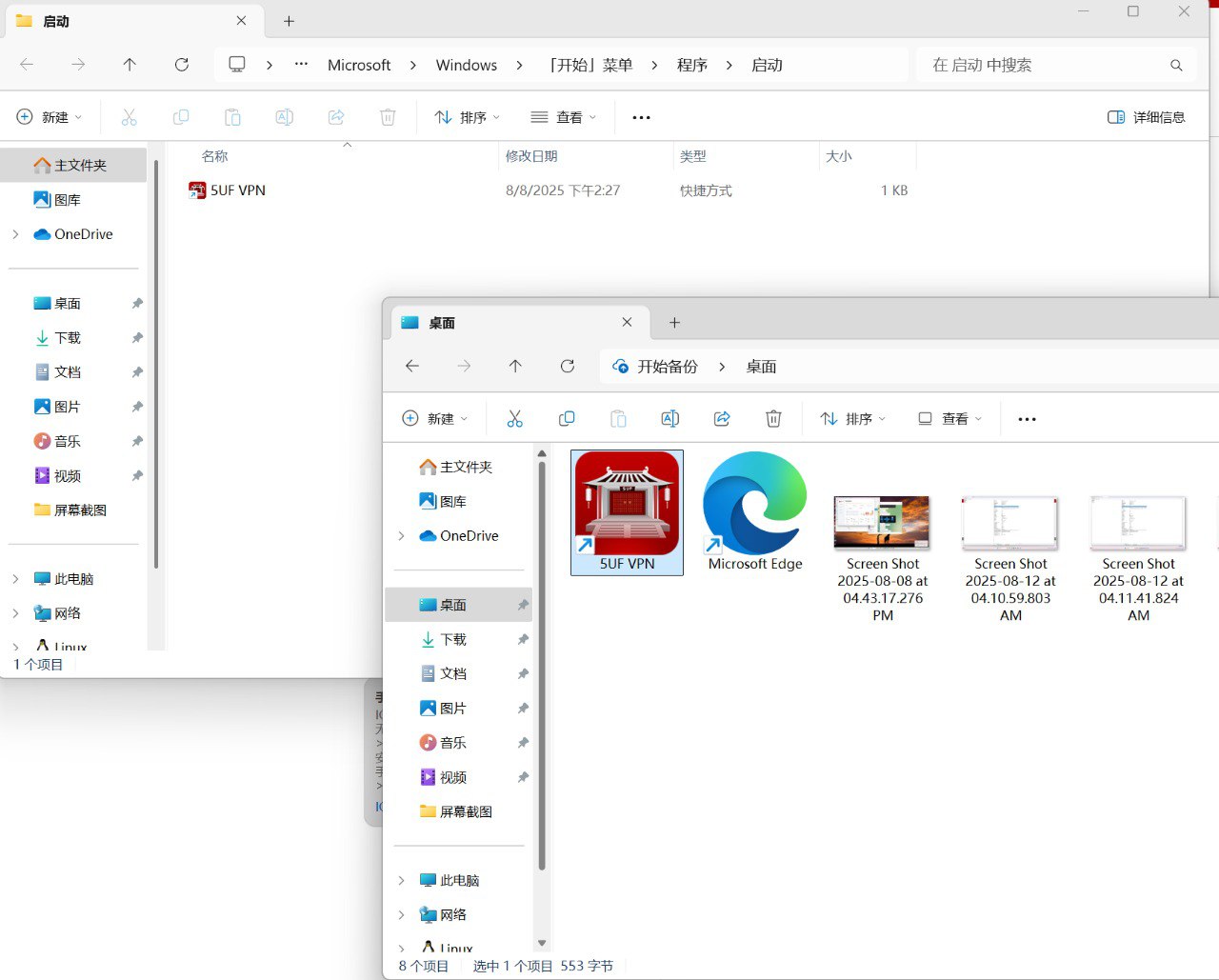
Step 3: Add 5UF VPN to Startup
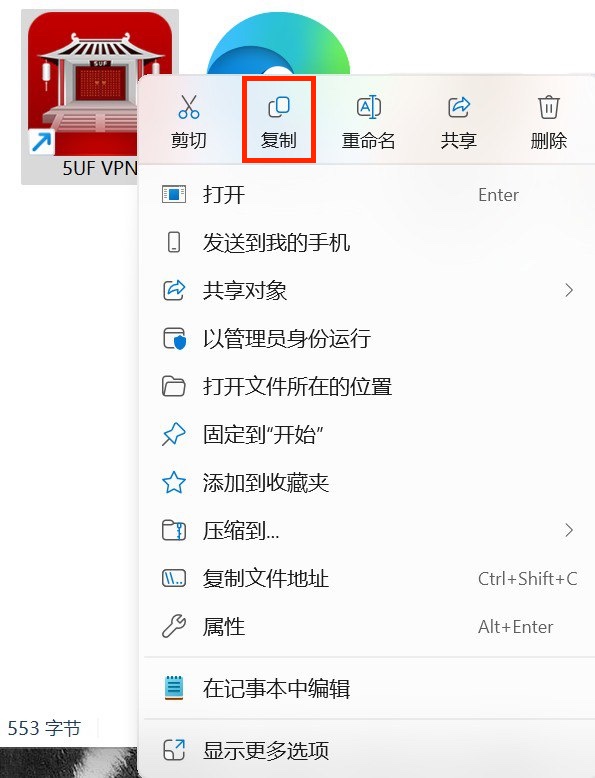
Locate the 5UF VPN application executable or its shortcut on your computer.
Drag and drop the 5UF VPN shortcut into the Startup folder window. This action ensures the app will automatically launch every time you sign in.
Additional Tips:
-
If you do not have a shortcut, right-click the 5UF VPN.exe file and select Create shortcut before moving it to the Startup folder.
-
To remove the app from startup, simply delete the shortcut from this folder.