


手机用户
IOS(iPhone,iPad,iTouch):
无忧府APP->下载配置文件->OpenVPN->手工配置
安卓用户:
手工配置->openvpn->strongswan(iKev2)->sstp
How to Create an Overseas Apple ID (Hong Kong) from Mainland China
Need access to apps that aren't available in the Mainland China App Store? Here's a simple step-by-step guide to help you create a Hong Kong Apple ID right from your iPhone — no VPN needed.
?️ Step 1: Go to Apple ID Website
-
Open Safari (or any browser) and go to https://account.apple.com/account#
-
Click “Create Your Apple ID” in the top-right corner.
? Step 2: Enter Your Details
-
Fill in your first name, last name, and date of birth.
-
Enter a new email address (one that hasn’t been used with Apple before).
-
Choose a strong password.
-
Set your country or region to Hong Kong.
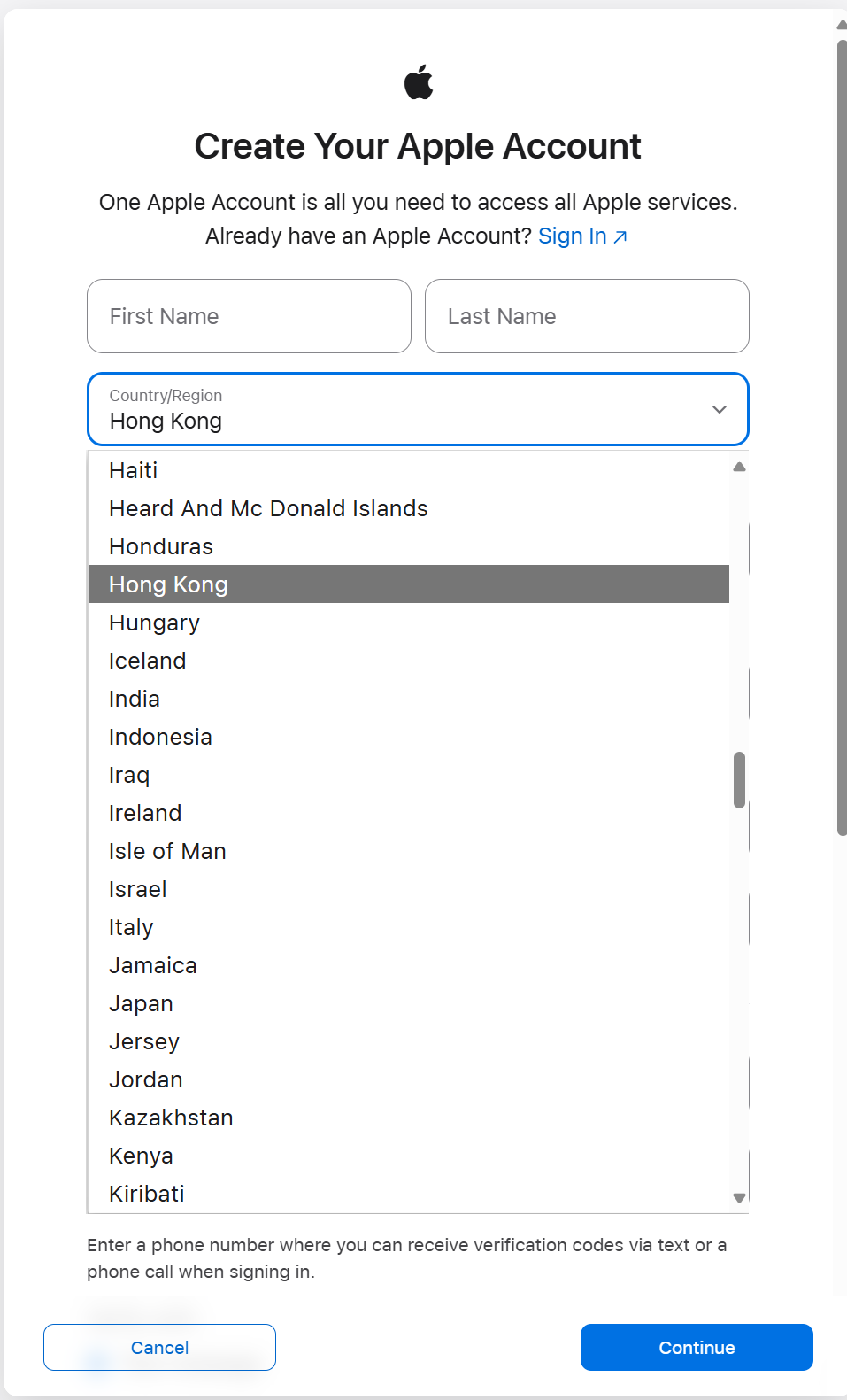
? Step 3: Add Your Phone Number
-
Use your Mainland China mobile number — it’s fine!
-
This number will receive a verification code, so keep it nearby.
✅ Apple allows you to verify an overseas Apple ID using a Chinese phone number.
? Step 4: Set the Billing Address
-
For the billing address, you can use any valid Hong Kong format.
-
Feel free to randomly fill in the address fields — just make sure it's realistic:
-
Example:
-
Street: 88 Queensway
-
District: Central
-
City: Hong Kong
-
Postal Code: 000000
-
Phone: +852 6123 4567
-
-
-
For payment method, choose None if it’s available.
? Tip: You can also use a Hong Kong hotel or store address for convenience.
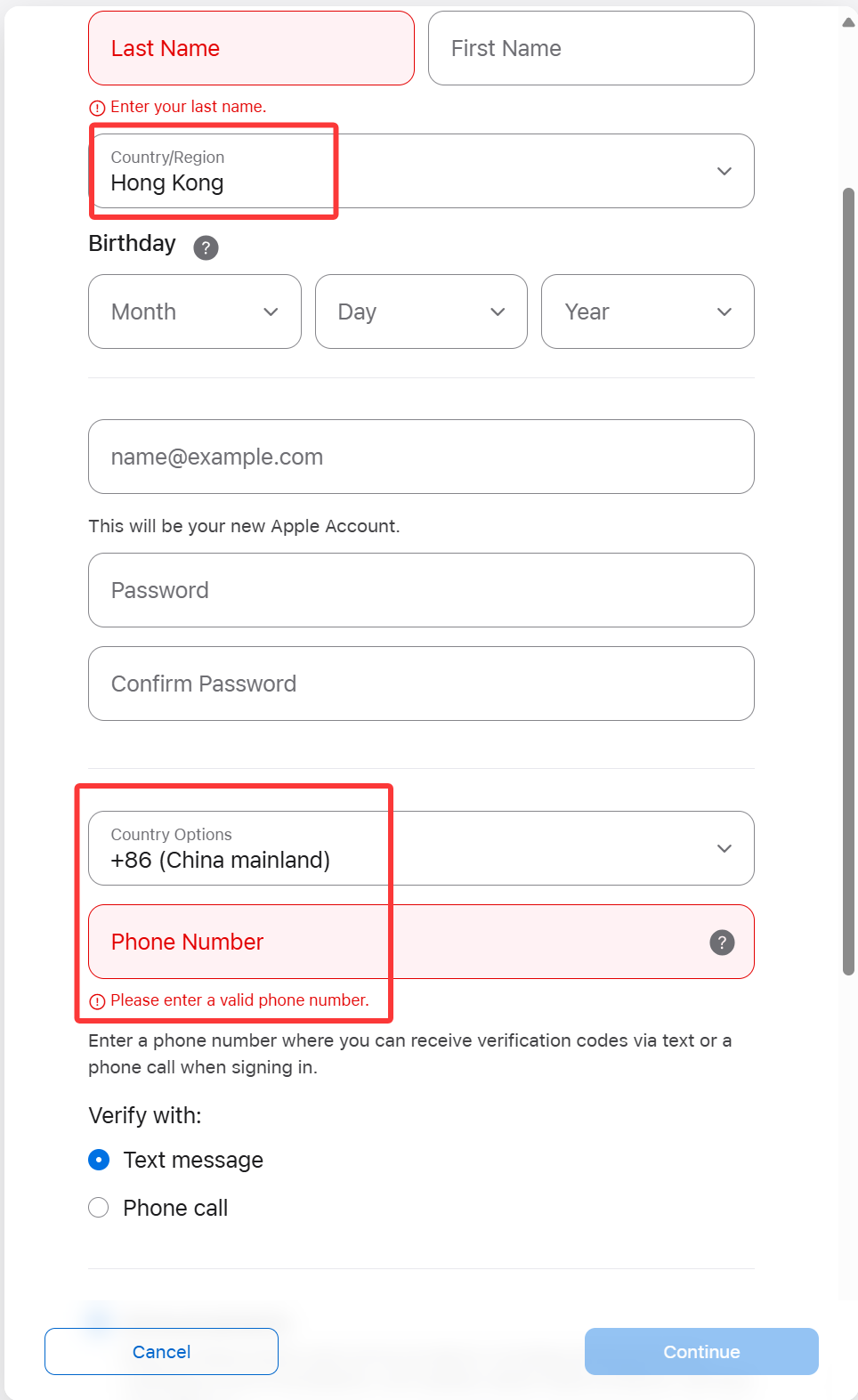
✅ Step 5: Verify and Complete
-
Enter the verification code sent to your phone number.
-
Apple will also send a confirmation email — open it and click the link to verify.
-
Once verified, you can sign in with your new Hong Kong Apple ID.
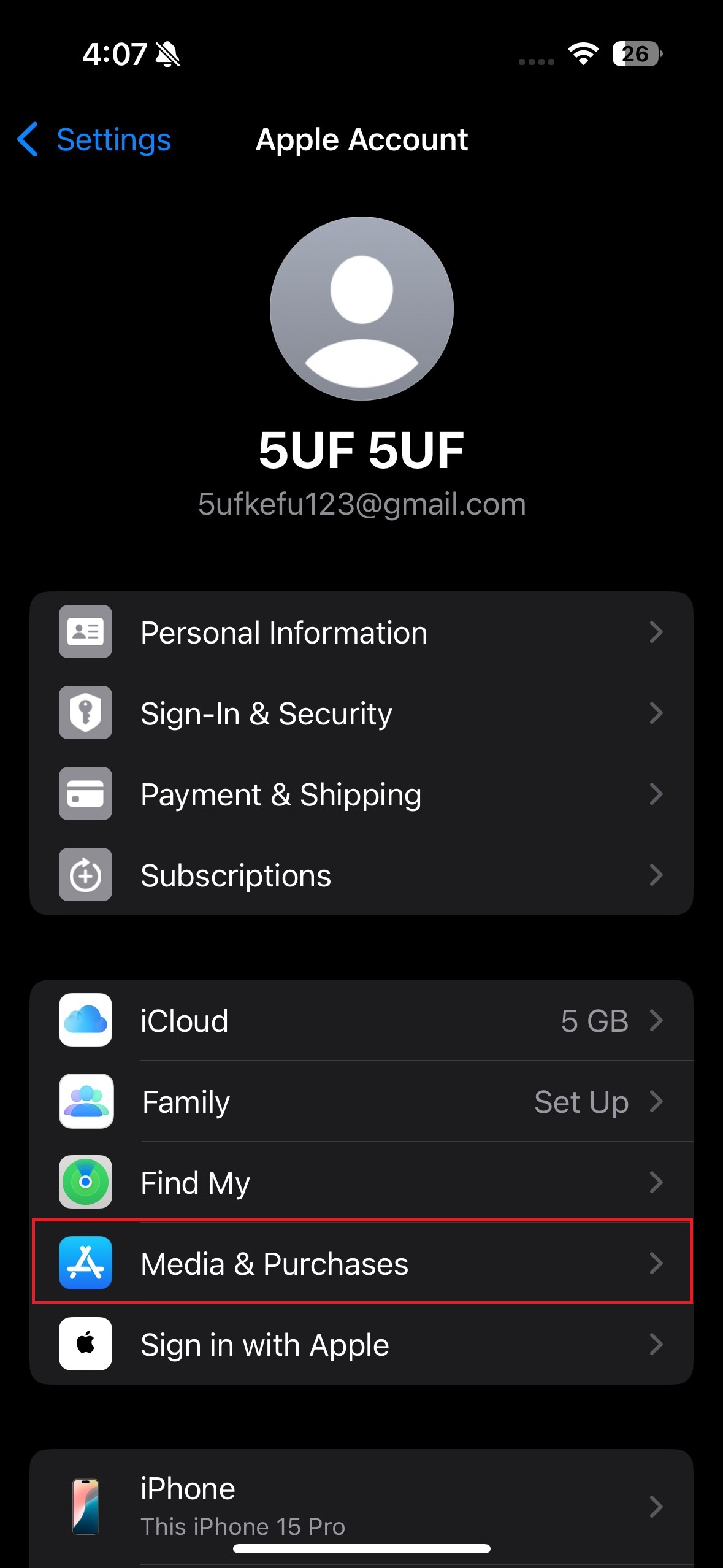
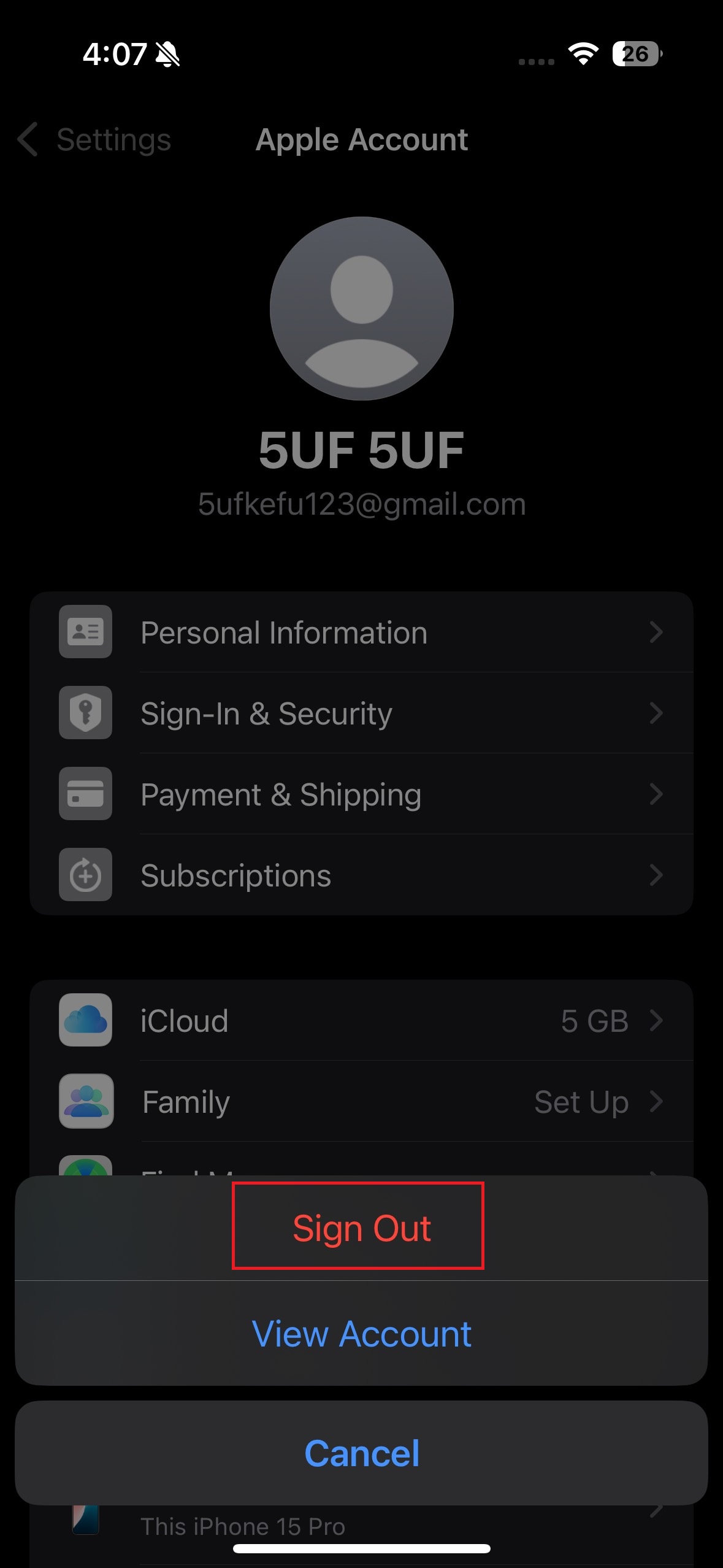
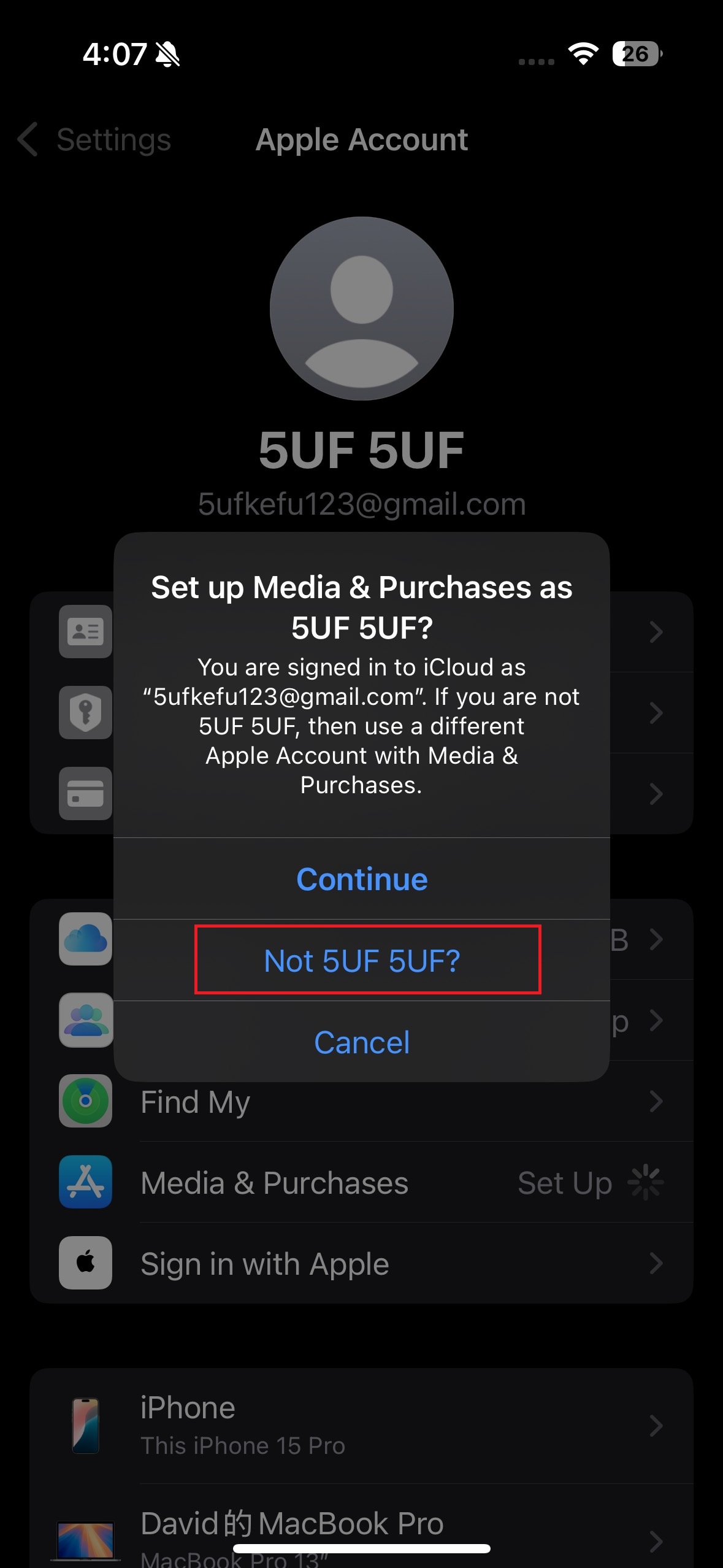
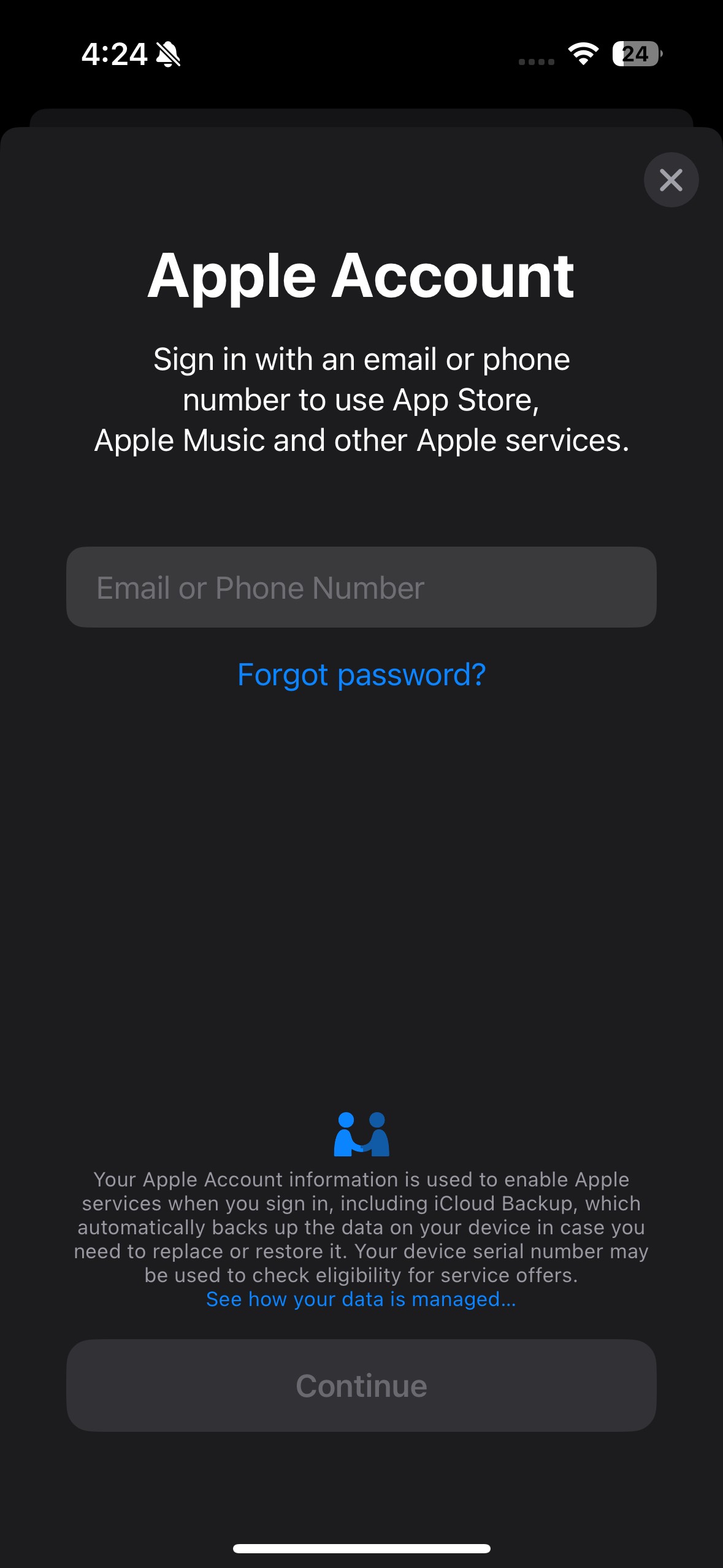
After signing out, return to the “Media & Purchases” section and sign in using the Apple ID you just created.
This will link your new account to the App Store and allow you to download apps from the selected region.
⚠️ A Few Notes:
-
Avoid switching Apple ID regions too often — it may affect app updates and subscriptions.
-
Don't use iCloud syncing with multiple Apple IDs on the same device.
-
If “None” isn’t showing under payment methods, try creating the account through the Apple ID website first, then log in on your iPhone.
Frequently Asked Questions
No, logging out only affects store-related services. Your personal data and iCloud services remain safe as long as you're still signed in to iCloud.
Photos
Contacts
Messages (iMessage)
FaceTime
iCloud Drive
Find My iPhone
App Store & iTunes Store access
Apple Music, if subscribed under that Apple ID
Apple TV+, Apple Arcade, and other subscriptions tied to that ID
Updating apps downloaded with that Apple ID
✅ Apple TV+ and full TV app content
✅ Restricted apps (YouTube, Telegram, WhatsApp, etc.)
✅ Apple Arcade, Apple News, full Apple Music catalog
✅ More payment options (PayPal, HK gift cards)
✅ App Store in English & Traditional Chinese
1. Will logging out of my Apple ID under Media & Purchases affect my device?
✅ Not Affected (if still signed into iCloud):
❌ Affected:
? Switching from a Mainland China to Hong Kong Apple ID (Media & Purchases only) unlocks:
2. If my phone number has already been linked to another Apple account, can I still use the same phone number to create another account?
Answer: Yes, you can still use the same phone number to create or verify another Apple ID. However, the number can only be associated with iMessage and FaceTime for one Apple ID at a time. You may receive a prompt to verify which Apple ID you want the number to be used with for messaging and FaceTime.
When creating a new Apple ID, keep in mind that you must use an email address that has not been previously linked to any Apple ID. Each Apple ID requires a unique email, and the same email cannot be used to create multiple accounts.
3. What to do when you want to download apps that are only available in mainland China?
Answer: You can simply choose to sign out from the Media & Purchases account and log back into it using your mainland China Apple ID. Since both accounts are yours to manage, you can switch between them as needed to access region-specific apps.
